Timers
The single most important fact about live activity timers: the operating system ticks
them, not your app. You hand over absolute instants once, and iOS renders
Text(timerInterval:) out of process (not even the widget extension executes per tick)
while Android's SystemUI drives the notification chronometer. Zero app wake-ups, zero
battery attributed to you, and the clock keeps running after your process dies.
That is why the API takes DateTimeOffset anchors, never durations — an instant stays
correct forever; a duration would drift and die with the process:
Timer = LiveActivityTimer.CountDown(order.Eta);         // ticks down to the instant
Timer = LiveActivityTimer.CountUp(workout.StartedAt);   // ticks up from the instant
Timer = LiveActivityTimer.Paused(elapsedSoFar);         // frozen display
The mental model: timestamps in, ticking UI out — updates are for state changes, not for
time passing. A 40-minute delivery ETA costs exactly one StartAsync; the display stays
correct the whole ride with no further calls.
Pausing and resuming
Neither OS can freeze a ticking clock in place, so pausing is a (single) state change:
// Pause: replace the ticking clock with a frozen elapsed display.
await activity.UpdateAsync(c => c.Timer = LiveActivityTimer.Paused(DateTimeOffset.UtcNow - startedAt));

// Resume: recompute the anchor so the clock continues from where it stopped.
await activity.UpdateAsync(c => c.Timer = LiveActivityTimer.CountUp(DateTimeOffset.UtcNow - pausedElapsed));
When the countdown reaches zero
Nothing happens — by design, on both platforms. Reaching zero is not an event: no callback fires, the activity does not end, and no code of yours runs. "The timer hit zero" and "the pizza actually arrived" are different facts; only your app knows the second one.
What each platform displays past the end:
| Android | iOS | |
|---|---|---|
| Native behavior | chronometer counts into negatives (−08:30) | rendered text stops at 0:00 |
With StaleAt = endsAt |
(unchanged) | system re-renders at that instant → the overflow starts ticking by itself |
That second row is the one system-side trigger iOS offers. ActivityKit's staleDate (our
StaleAt) makes the system re-render the widget when the instant passes — no app code
runs, but the re-render is enough for the bundled widget to notice the end is in the past
and switch to the overflow display. One line makes iOS match Android end to end, even with
your app dead:
Timer = LiveActivityTimer.CountDown(eta),
StaleAt = eta,   // boundary re-render: countdown flips to overflow by itself
What the overflow looks like is controlled by SubtitleOverflow:
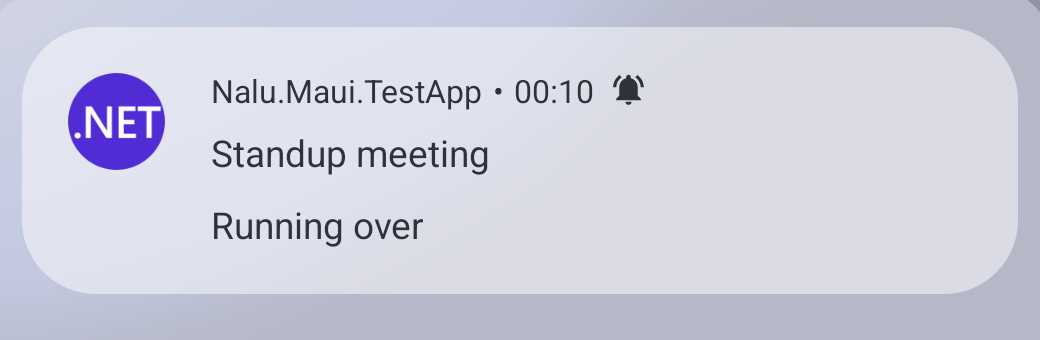
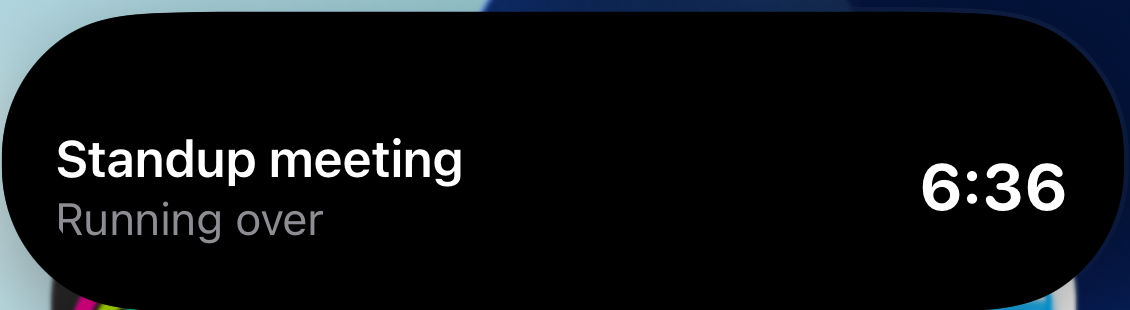
SubtitleOverflow = null(default): the overflow ticks as a negative duration (−0:35 and counting) — Android's chronometer natively, iOS as a−-prefixed count-up. Compact and language-neutral, but the number is the only overflow signal.SubtitleOverflow = "Running over": past the end the wording takes the subtitle's place and the overflow ticks as a plain count-up (no minus) — the text carries the semantics, app-localized. On iOS the swap happens system-side (withStaleAtset even while your app is dead); on Android it applies from the first post at or after the end — until then the chronometer ticks natively into negatives.
Note
Important
StaleAt must be in the future to be useful. A stale date that has already passed makes
ActivityKit create the activity in ActivityState.stale, and a stale activity is never shown
at all. Nalu drops a past stale date for you, so an activity whose end has gone by still
appears — but do not rely on a past StaleAt to mean anything.
StaleAtdoes double duty: it also transitions the handle toLiveActivityState.Stale, its original meaning of "this content is now outdated". Only point it at the countdown end when the overflow flip is what you want.
Changing meaning at the boundary
Rendering is one thing; semantics are another. When crossing zero should change what the activity says — "Time remaining" becoming "Running over", green becoming red, an alert firing — that is an app-owned update at the boundary:
// While the appointment runs: green countdown, with the overflow wording ready.
Subtitle = "Time remaining";
SubtitleOverflow = "Running over";   // takes the subtitle's place past the end
Timer = LiveActivityTimer.CountDown(appointmentEnd);
StaleAt = appointmentEnd;   // display flips to overflow even if the app never wakes

// At the boundary (your own scheduled task while the app lives) — rendering is already
// handled; the update carries only what the system cannot do alone:
await activity.UpdateAsync(
    c =>
    {
        c.AccentColor = "#E5484D";
        c.StaleAt = null;
    },
    new LiveActivityAlert("Appointment is running over"));
After that single update the OS ticks the overflow forever — no matter how long the meeting runs over, you never send another update for time passing:
The full decision ladder:
- Rendering-only boundary →
StaleAt = endsAt; the system handles it, app can be dead. - Semantic boundary, app alive → schedule your own clock and send one update (above).
- Semantic boundary, app dead → only a server push can do it; iOS has no wake-me-at-time-X primitive for suspended apps. (Push-driven updates are on the roadmap.)
The TestApp's "Live Activity Timer Tests" page is the runnable version of this chapter: a 2-minute appointment counting down, flipping to red overflow automatically at the end (or on demand via Overflow now).
Lock Screen display fidelity (iOS)
Two rendering behaviors are the OS's, not yours — no API changes them:
- Always-On Display masks seconds. In the reduced-luminance lock state the system
renders a ticking clock as
1:--, updating only the minutes; full luminance brings the seconds back. Apple's own Timer activity behaves the same. - Only interval-based timer text survives the Lock Screen. The bundled widget renders
every ticking mode through SwiftUI's
Text(timerInterval:): the plain.timertext style can degrade to a coarse relative string ("1 minute") on the Lock Screen instead of ticking. Keep that in mind when building a custom widget.